Beginner's Lesson · ~45 minutes

Add Your Own Stage to MUGEN from scratch

No prior MUGEN experience needed. By the end of this lesson, you'll have your own custom-built stage running inside MUGEN with a scrolling background and an animated torch and you'll understand every line of code that makes it work.

★ Total Beginners 7 Steps Starter Pack Included
my-first-stage.def preview
YOUR STAGE

A Stage Is Just Three Things

Before we touch any tools, here's the entire concept in a nutshell. If you understand these three things, the rest is just typing.

01
Some Pictures
A background image (sky, mountains, walls whatever you want). Maybe a few small extras like torches or banners. That's it. They're just regular PNG files you can draw in any program.
02
A Sprite File (.SFF)
All those pictures get bundled into ONE file called an .sff. We use a free tool called Fighter Factory 3 to do this like zipping a folder.
03
A Config File (.DEF)
A plain text file that tells MUGEN: "use this picture here, that picture there, the camera goes from X to Y, players spawn here." That's the file we'll spend most of today learning to read and edit.

Build Your First Stage Step by Step

Click through each step at your own pace. Open the starter pack alongside this lesson so you can edit it as you go. Every step ends with a small "Try it" challenge to make sure you've understood.

Lesson Step 1 of 7
What's a Stage, Really?

When you pick a stage in MUGEN the dojo, the rooftop, the boss arena you're not actually playing inside a 3D place. You're looking at a stack of flat pictures arranged at different distances from the camera.

The picture furthest away (the sky, distant mountains) barely moves when fighters walk left and right. The picture closest (foreground bushes, fence posts) moves a lot. Your brain reads this difference in speed and thinks "ooh, depth!" even though everything is flat.

This trick is called parallax scrolling, and it's been used in 2D games since the 1980s.

The good news for total beginners: your first stage doesn't need parallax at all. You can make a working MUGEN stage with literally one background picture. We'll add the fancy stuff once you've got something running.

Things every MUGEN stage needs:

  • A folder inside MUGEN/stages/
  • A .def file (the config plain text)
  • A .sff file (your bundled artwork)
  • One line added to MUGEN/data/select.def so MUGEN knows it exists

That's literally it. Four things. Let's go get them.

Lesson Step 2 of 7
Grab the Starter Pack

Scroll to the bottom of this page and download the My First Stage Starter Pack. It contains three files:

  • my-first-stage.def the config file, fully commented in plain English
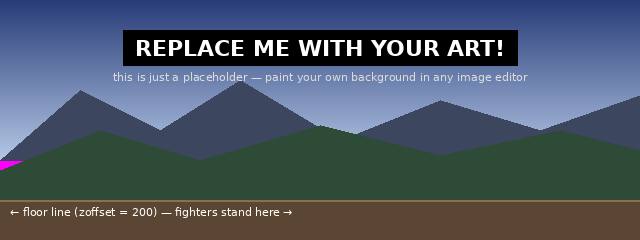
  • my-first-stage-bg.png a placeholder background to replace later
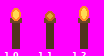
  • my-first-stage-torch.png a 3-frame animated torch sprite sheet

Make a new folder anywhere on your computer (Desktop is fine) and unzip the pack into it. Open my-first-stage.def in Notepad (or VS Code if you have it) and just have a quick look. Don't worry about understanding it yet we'll go through every section in Step 4.

Why a starter pack? MUGEN files are very particular about formatting one missing comma and the whole stage breaks. Starting from a working file means you can always "delete and try again" if something goes wrong, instead of having to rewrite from memory.
Don't double-click the .def file Windows might try to open it with the wrong program. Right-click → Open with → Notepad.
Try it
Open my-first-stage.def in Notepad. Find the [Info] section near the top and change author = "Your Name Here" to your actual name. Save the file. Congratulations you've just edited a MUGEN stage.
Lesson — Step 3 of 7
Pack Your Pictures into an SFF

MUGEN doesn't read PNG files directly. It reads .sff files a special format that bundles many sprites together with ID numbers attached. We use Fighter Factory 3 (free, included in the workshop downloads) to create them.

The plan: two pictures, two ID numbers.

FileGroupImageWhat it is
my-first-stage-bg.png00Background
torch frame 110Torch (bright)
torch frame 211Torch (dim)
torch frame 312Torch (bright)

Step by step in Fighter Factory 3:

  • Open Fighter Factory 3 → File → New → Stage
  • Click the Sprites tab on the left
  • Click Add and select my-first-stage-bg.png
  • In the Group/Image fields at the bottom, set Group = 0, Image = 0
  • Repeat for each torch frame: Group = 1, Image = 0, 1, 2 in turn
  • File → Save As → save as my-first-stage.sff in the same folder as your .def
The torch sprite sheet has all 3 frames in one PNG. You can either cut them apart in any image editor first, or use FF3's sprite splitter — whichever you find easier.
The pink colour (#FF00FF magenta) in the placeholder isn't a mistake MUGEN treats that exact pink as transparent. Don't replace the magenta with white or your torch will have a white box around it.
Lesson — Step 4 of 7
Read Your .DEF File Out Loud

Let's walk through the most important sections of my-first-stage.def. Open the file in Notepad and follow along each block does one specific job.

1. The name on the stage select screen.

[Info]
name        = "My First Stage"     ; >>> EDIT ME <<<
displayname = "My First Stage"
author      = "Your Name"

2. The camera bounds — how far it can scroll.

[Camera]
boundleft  = -250    ; how far the camera scrolls LEFT
boundright =  250    ; ...and RIGHT
boundhigh  = -100    ; ...and UP

3. Where the fighters spawn.

[PlayerInfo]
p1startx = -70   ; Player 1 starts 70px LEFT of centre
p2startx =  70   ; Player 2 starts 70px RIGHT of centre

4. Where the floor is.

[StageInfo]
zoffset = 200    ; FLOOR is 200 pixels down from the top
localcoord = 320, 240   ; the "virtual" screen size
Anything starting with a semicolon (;) is a comment. MUGEN ignores it. Use comments to leave yourself notes your future self will thank you.
Try it
Change name = "My First Stage" to something fun like "Volcano of Doom". Save the file. (We'll see this name appear on the stage select screen at the end of the lesson.)
Lesson — Step 5 of 7
Layers & the Magic of Delta

Now the fun bit. Each [BG ...] block in your .def is one layer of artwork. The most important setting on every layer is deltait controls how fast that layer scrolls when fighters walk.

  • delta = 0, 0 doesn't move at all. Use for the sky.
  • delta = 0.5, 0.5 half speed. Use for distant mountains.
  • delta = 1, 1 exactly matches the camera. Use for the floor.
  • delta = 1.5, 1.5 faster than the camera. Use for foreground objects.
delta 0.1 — sky
delta 0.5 — mountains
delta 1.0 — floor
delta 1.5 — foreground
0

Drag the slider above to "walk" the camera left and right. Notice how the sky barely budges and the foreground races past that's parallax!

Here's the actual code for the background layer in your starter file:

[BG Background]
type     = normal
spriteno = 0, 0       ; Group 0, Image 0
start    = 0, 0       ; >>> EDIT ME <<<
delta    = 0.5, 0.5   ; >>> EDIT ME <<<
mask     = 0
tile     = 0, 0
Try it
In your .def, change the background's delta from 0.5, 0.5 to 0.2, 0.2. Save. (You'll see the change after we import the stage in Step 7 the background will scroll more slowly, making it feel further away.)
Lesson — Step 6 of 7
Animate the Torch

Static backgrounds are fine but a flickering torch makes a stage feel alive. To animate something, we use type = anim instead of type = normal, and point it at an action defined further down in the file.

The animated layer:

[BG AnimatedThing]
type     = anim       ; ← the magic word
actionno = 10         ; ← which animation to play
start    = -50, 80
delta    = 0.8, 0.8
mask     = 1          ; magenta = transparent

The animation itself — each line is one frame, with this format: group, image, x, y, ticks. 60 ticks = 1 second.

[Begin Action 10]
1, 0,  0, 0,  6     ; show sprite 1,0 for 6 ticks (bright)
1, 1,  0, 0,  4     ; then 1,1 for 4 ticks (dim)
1, 2,  0, 0,  6     ; then 1,2 for 6 ticks (bright)
1, 1,  0, 0,  4     ; then 1,1 for 4 ticks — and loop forever

That's it — when MUGEN reaches the end of the action, it automatically loops back to the top.

Want a faster flicker? Lower the tick numbers (try 3, 2, 3, 2). Want slower? Raise them. The numbers are frames, not seconds.
Try it
Add a SECOND torch on the right side of the stage. Copy the whole [BG AnimatedThing] block, paste it below, rename it to [BG AnimatedThing2], and change start = -50, 80 to start = 80, 80. Both torches will share the same animation that's fine.

Lesson Step 7 of 7
Import & Test In MUGEN

The moment of truth. Here's exactly where everything goes:

MUGEN/ ├── mugen.exe ├── data/ │ └── select.def ← we'll edit this ├── stages/ │ └── myfirststage/ ← create this folder │ ├── my-first-stage.def │ └── my-first-stage.sff └── chars/

The four steps:

  • Inside MUGEN/stages/, create a new folder called myfirststage
  • Move your my-first-stage.def and my-first-stage.sff into that folder
  • Open MUGEN/data/select.def in Notepad. Scroll down to [ExtraStages] and add a new line:
    stages/myfirststage/my-first-stage.def
  • Save. Run mugen.exe, pick VS mode, and your stage will appear in the stage select screen 🎉

If something's wrong and it usually is the first time here's the troubleshooting cheat sheet:

SymptomWhat to check
MUGEN crashes on launchTypo in select.def. Make sure the path is exactly stages/myfirststage/my-first-stage.def
Black screen in the stageYour .sff isn't in the same folder as the .def, or the spr = line at the top points to the wrong filename
Pink box around the torchmask = 0 on the animated layer change it to mask = 1
Fighters floating in mid-airAdjust zoffset in [StageInfo] try 200, 220, 240 until they touch the floor
Stage doesn't appear in selectDid you save select.def? It catches everyone the first time
Now make it yours. Open the placeholder PNG in any paint program, replace it with a real background you've drawn, repack the .sff, and reload. That's the entire creative loop and it never stops being fun.
Final challenge
Once your stage works, try one of these: (a) draw your own background to replace the placeholder, (b) add a third [BG] layer with a different delta, (c) change the camera bounds so the camera scrolls further. Show me what you make!

Everything You Need Free

Download the three starter files and follow along with the lesson. Replace the placeholders with your own art whenever you're ready.

📄 .DEF File
my-first-stage.def
Fully-commented stage config with one background layer and one animated layer. Every section is explained in plain English. >>> EDIT ME <<< markers show exactly where to play.
⬇ Download .DEF
🖼️ PNG
Background Placeholder
A 640×240 placeholder background showing the floor line and player spawn area. Replace this with your own art whenever you're ready.
⬇ Download PNG
🔥 PNG
Torch Sprite Sheet
3 torch frames (bright / dim / bright) for your animated layer. Cut them apart in any image editor or use Fighter Factory's sprite splitter.
⬇ Download PNG
🔧 Workshop
Need Fighter Factory 3?
FF3 is the free tool for packing sprites into .sff files. The full MUGEN workshop has download links and a complete walkthrough.
→ Open Workshop